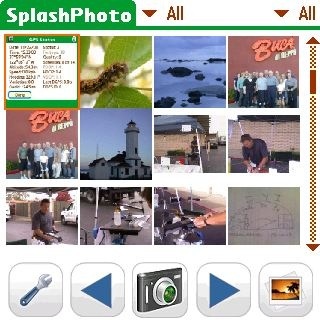
This is my long overdue review of SplashPhoto 5, an app that is designed to help you take full advantage of your Palm Centro or Treo's built-in camera. I'll admit that up to this point, I never gave the camera a second thought. However, when I saw some of the new features that are available in this version (i.e. finger-friendly navigation, Tree View to see all your photos in a familiar file system format, and the ability to share images with others on Picasa, Flickr and Facebook), I promised myself that I would make time to take a closer look.
Life before SplashPhoto -- Reminds me of "Sneakerware"
The thing I really wanted to know is if it would enable me to easily move images back and forth between my Centro and my Mac.
Back in the day, before email or the Internet became ready for prime time, to move files from one device to another involved what has been playfully referred to as "sneakerware." In essence, you copied the file onto a floppy disk and then walk down the hallway to hand the disk over to the recipient who'd put it in a floppy drive to upload.
I found today's methodology for moving images from my Centro to my desktop very similar... with an extra twist. To remove the tiny microSD card where my images reside from my Centro, I have to first take the battery door off. Once I access the SD card, I place it into my Kingston microSD reader, which plugs into my USB port. Then I'm ready to drag the images I want from the card to the desktop and edit using either PhotoShop or view in iPhoto (yes, I am a Mac - a PowerBook G4 to be exact). Since this felt to me like way too many steps, my Centros camera remained dormant for months.
Will SplashPhoto be a game changer for me? Let the test drive begin!
Getting Started
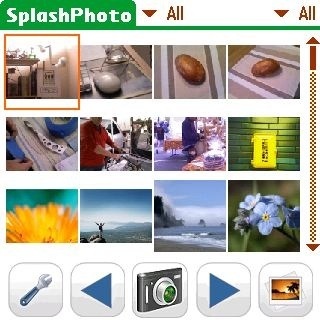
After downloading SplashPhoto to my Centro (saving it to my MicroSD card), I loaded the program and proceeded to play around taking pictures. My approach to testing is to first see how intuitive a program is to use before actually reading the manual.
So I immediately let my fingers do the tapping.
At the bottom of the SplashPhoto window, there is a toolbar that has a wrench in the first box (for Preferences). The Camera icon appears in the middle. On the far right is a Slideshow icon. To the left and right of the Camera icon are arrows that let you cycle through the different views of the stored images.

I tapped the Camera and was given a very simple screen with the option of taking pictures at 1x or 2x. This is where I found my first snag. It could be my particular Centro, where the D-Pad is fussy, but when I changed the zoom to 2x, I wasnt able to use the D-Pad to change it back. Rather, Id have to hit the Cancel button and then reload the Camera. But I digress.
So what I ended up doing was walking around our local farmers market taking pictures. Once I pressed the "Palm" in the center of the D-Pad, I was given two options. The floppy disk-looking icon is for saving the image. The trash can icon is for deleting it.
When you Save it, the image is given an arbitrary name (like 081214-133955).
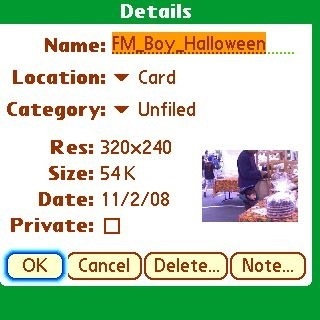
Back in the Viewer mode on my Centro, when I pressed on that image for Details, it showed me:
- Location - Card
- Category - Unfiled
- Resolution - 320x240
- Size: 15K

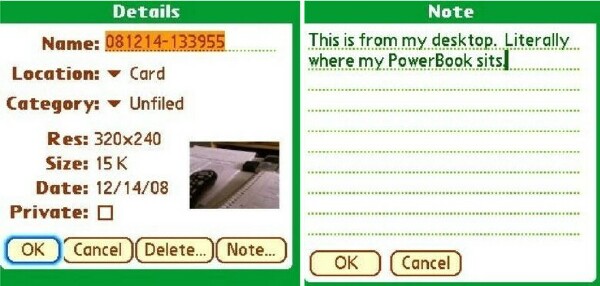
It also included the date the picture was taken and gave me a box to check to indicate if I wanted to make the image "Private." There are also options you can get to via the D-Pad. On the far right, a button named Note appears. It is here that you can provide details of what you shot.
Testing Transferring Images
I decided to run through the process of transferring images from start to finish. First, I just took a picture of something on my desk.
When viewing the image, I can hit the Menu button and under Options, there's one for Send Image (Menu S). Hitting it opens up a screen with several options to "Send With." From what I could tell, it appears that SplashPhoto has looked at what apps I have loaded on my Centro and given me the following as options:
- Agendus Mail
- Beam
- Bluetooth
- Email
- Facebook Uploader
For testing purposes, I decided to try Bluetooth, Beam and the Facebook Uploader.
Send with Bluetooth
When I tapped Bluetooth, it "discovered" my Mac. After hitting OK, I immediately saw a pop-up screen on my Mac telling me that file 081214-133955 was about to be transferred. It gave me the option to accept or reject. So I accepted.
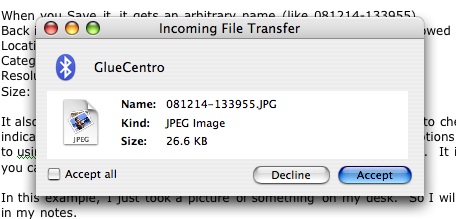
I didn't immediately see the image on my desktop. So I used my Mac's "Find" utility to search for it.
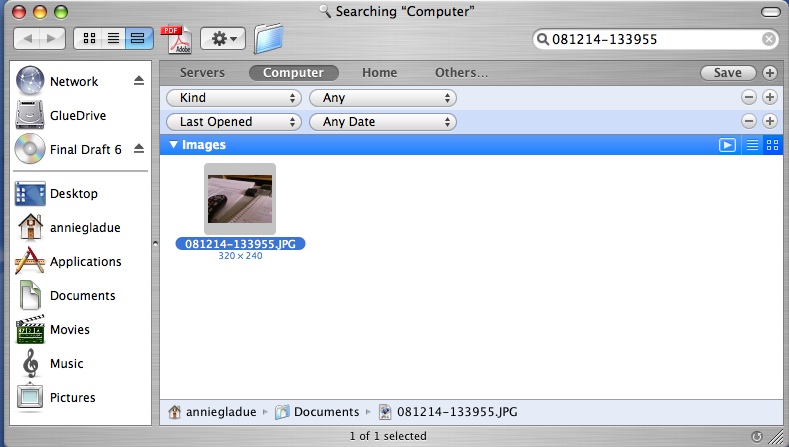
It had landed in the LIBRARY. This is "a Mac thing" which I should be able to change by fiddling with my defaults. The point is, the image moved from my Centro to my Mac without me doing a modified "sneakerware" move. Hoorah!
Send with Beam
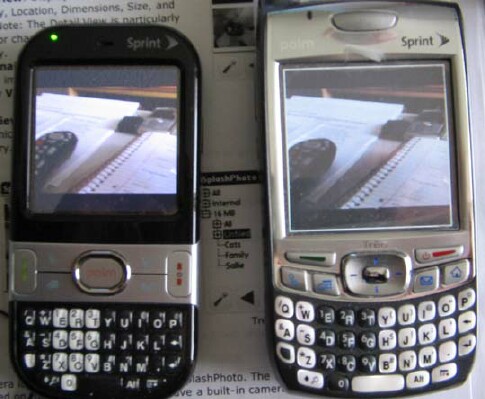
Next I tried the Beam option. So I put my Centro next to my Treo 700p and aligned their IR ports. Within seconds, the image appeared on the screen of the 700p. Way cool!
Send with Facebook Uploader
For my next trick, I used the Facebook Uploader to send the image. Super cool!
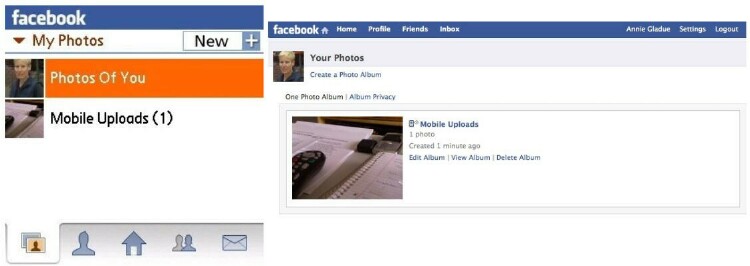
It went from my Centro, after activating Web access, to my Facebook page lickety split. I was able to view it on the Web (the Facebook page using Firefox) and via Facebook Mobile on my Centro.
So far, I'm sold!
Using the SplashPhoto Desktop to Get Organized
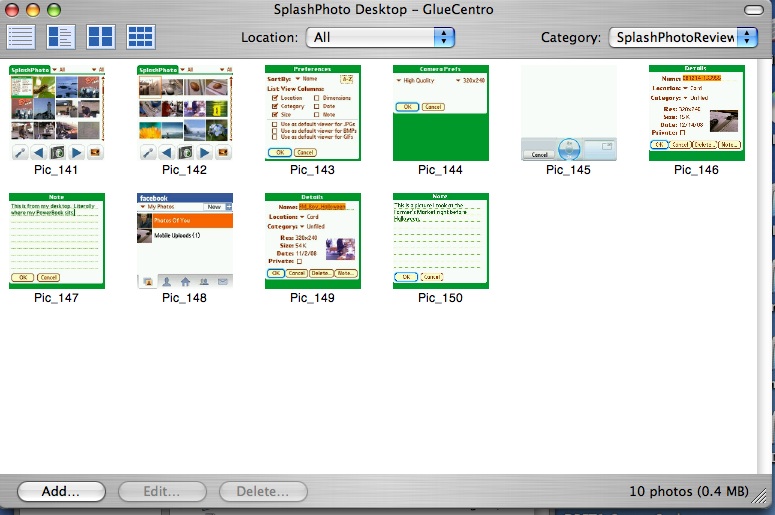
Another huge benefit of using SplashPhoto is that you are given a Desktop app that can help you organize your photos and do some modifications (crop and edit, adjust brightness and contrast, and change the Name, Category, and Location). When you HotSync, the Centro and Desktop catalogs will match.
For an example of how that looks, let's circle back to the picture of the boy at the Farmer's Market.
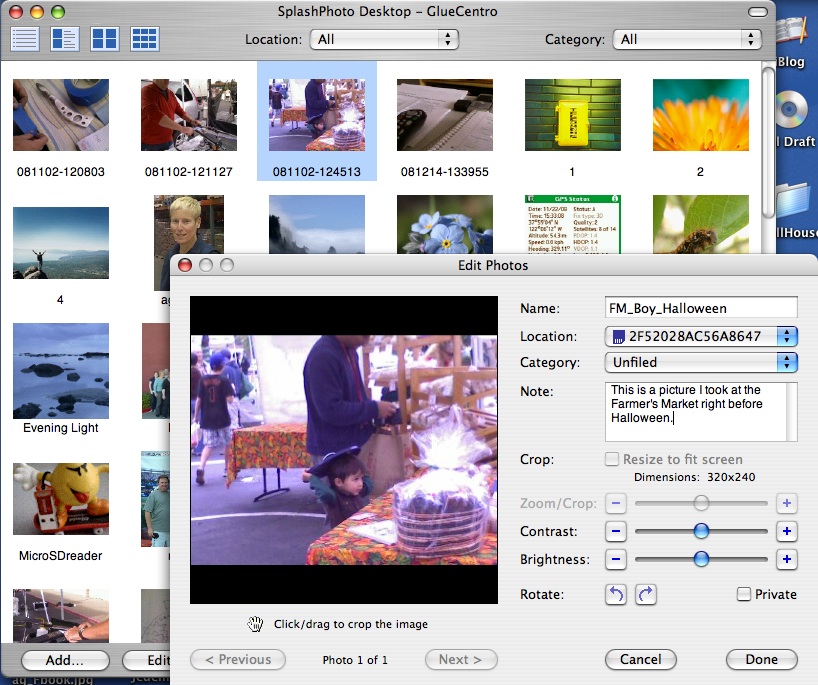
It's Now Classified...
Here's something really cool. The Desktop app makes setting up categories for your photos really easy to do. For testing purposes, I decided to use the SplashPhoto Desktop app to help me organize the images that I planned to include with this story, which consisted of pictures taken with my Centro, screen grabs from the Centro, and screen grabs from my Mac.
First of all, I was pleasantly surprised to see that all the screen shots I took from my Centro were automatically transferred to the SplashPhoto Desktop.
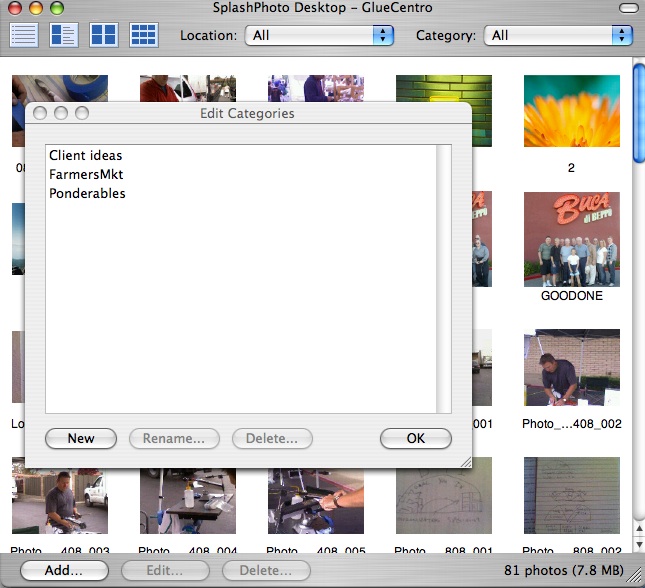
I went and created a Category called "SplashPhotoReview" to label all the images. Then I dragged in the screen grabs I took from my Mac onto the SplashPhoto Desktop, into the SplashPhotoReview area. As each image showed up, I was given the same options of changing the name, cropping/editing and classifying. In no time I had all the pictures for this review in one spot, ready for editing.
Note: I love truly pragmatic solutions! This feature alone sold me. In fact, it looks like SplashPhoto will be awesome for all my future reviews too.
Many Views to Use
Another feature worth mentioning is the many Views SplashPhoto offers on the Centro and Desktop (it is one of their selling points).
- List View displays all the details of the images in a list.
- Detail View shows a Thumbnail, Name, Category, Location, Dimensions, Size and Notes.
- Thumbnail View displays large thumbnails and image name.
- Gallery View shows smaller thumbnails without names.
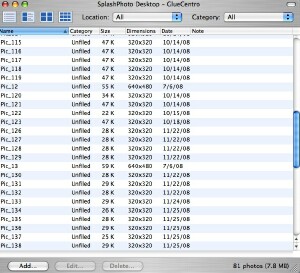
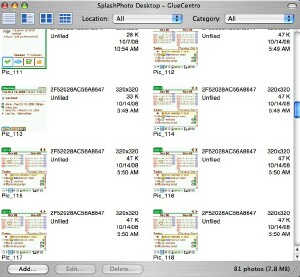
It is really easy to hop between views. I found the Thumbnail one especially useful.
Techie Stuff You Should Know About
Though I tested it on my Centro, which runs Palm OS® by ACCESS Version 5, SplashPhoto for Palm supports all handheld models running Palm OS 4.0 or later that are capable of displaying 16-bit images. It handles standard (160x160), Hi-Res (320x320) and Hi-Res (320x480) displays. It requires 230k of free memory for the application and 30k per image. And, here's the good part, it works on Macs (Mac OS Version 10.2 or higher) as well as Microsoft Windows machines running Windows Windows ME, NT4, 2000, XP or Vista.
Setting preferences is easy to do. From the Centro, I just hit the button to bring up the menu. Reading from left to right, you will see Options, Albums, Prefs. D-Pad or tap on Prefs (or just hit Menu P). You will get several options for what is included in the List View (Location, Category, Size, Dimensions, Date, Note).
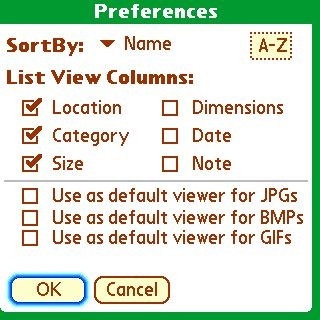
You can also set Camera Preferences. From that same Prefs area, tap or D-Pad down to Camera Preferences. Here you can set the default image quality:
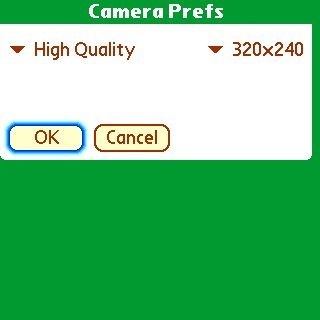
Highest, High Quality, Medium Quality, Low Quality, Lowest Quality. Strangely enough, next to all of those is a drop down that shows the various resolutions possible. For some reason, I was allowed to select Low Quality at a 1280x960 resolution. To me, that didn't make sense. Perhaps someone who knows more about photography can clue me in.
Conclusion SplashPhoto IS a Game Changer
My review merely scratches the surface of all the things you can do with SplashPhoto. For example, a whole separate review could have been done just on the interactivity between Picasa, Flickr and Facebook.
Looking back, I have a hard time coming up with something not to like about SplashPhoto. Seriously, this application well exceeded my expectations. It took the hassle out of using my Centro's built-in camera. In fact, I'm smiling because I now have a really efficient way to get my photos into circulation (and get my Centro screen grabs over to my Mac).
Plus, I am quite impressed with how intuitive it is to use. It really seems like the folks at SplashData anticipated my needs. In fact, this is clearly a situation where the company's experience shines through. First introduced in 2000, SplashPhoto has evolved over the years into a terrific program that is a game changer and a keeper, as far as I'm concerned.
I look forward to continuing to learn more about the wonderful things I can do with this app. At first, the price ($29.95) kind of took me back. But thinking about everything SplashPhoto lets me do, I'd say that it is money well spent.
|
|
| Pros |
Great way to get photos out of Centro.
Desktop component makes organizing photos a snap.
Super-easy to use.
Finger-friendly interface ideal for Centro.
|
|
| Cons |
What is not to like?
Okay... the D-Pad interface is a little rough. |
|





